Drone
Move left for sustained, spacious atmosphere and a drone-led performance.
Ambivuu is designed to stay in motion. Start from a musical world, listen for a moment, then guide the balance, texture, and space instead of programming a timeline.
First session
iPad
Flow changes the musical emphasis while preserving the character of your selected world. Move it gradually and use the individual levels to make smaller corrections.
Move left for sustained, spacious atmosphere and a drone-led performance.
Keep Flow near the centre to balance the long-form drone layer with melodic detail.
Move right to bring forward more active melodic motion.
Use the separate Drone and Melodic level controls for a more exact balance. Their independent sends let each layer enter delay and reverb differently.
Performance tip: Make slow changes and leave a little space between them. Small moves can have a large effect once the generative layers respond.
Patch Bay
The Patch Bay lets you decide how much of Ambivuu stays surprising. Choose the musical foundation yourself, then either select the remaining parts or let Auto discover combinations.
Sets the tonal centre and the notes available to the instrument.
Sets the pacing and generative character of the world.
Choose these patches directly for a deliberate combination, or leave them on Auto for discovery.
Save a state you want to return to. Create a Variation when you want a related alternative without starting from zero.
Mac
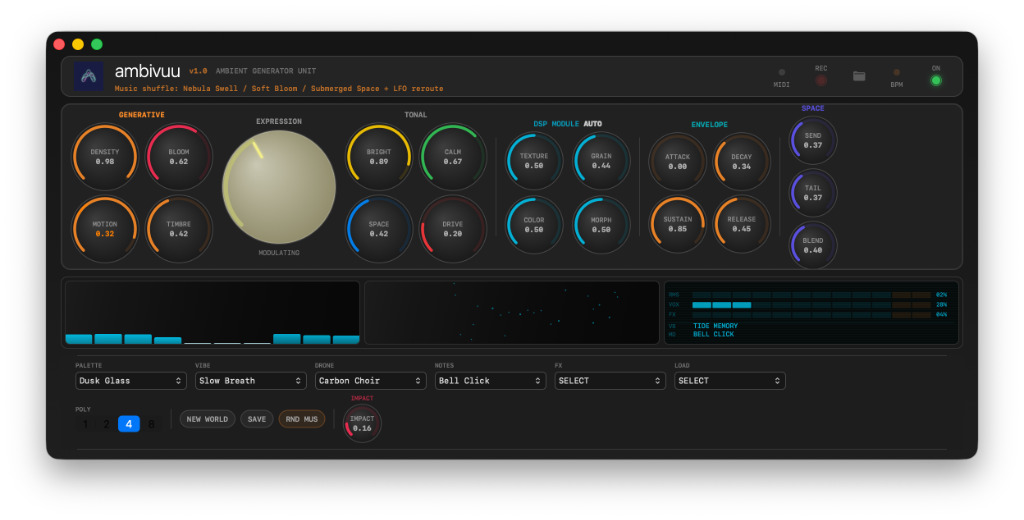
Use the floating, assignable XY Pad to shape two dimensions at once with deliberate, hands-on movement.
Assign compatible MIDI hardware controls so Ambivuu can sit naturally in your desktop performance setup.
Record when you want to keep a full performance, or use the rolling 30-second capture to preserve a moment that has just happened.
Select the audio output that fits your session, whether you are listening on your Mac or routing to another device.
A simple working method
Questions
No. Ambivuu generates evolving drones, melodic figures, and texture from its current world and controls, so you guide its direction in real time.
New World starts a fresh state. Variation keeps a connection to the current world while creating a related alternative.
Yes. One purchase unlocks Ambivuu on iPad and Mac when you use the same Apple Account.
Visit Ambivuu Support or email hello@tocolabs.co.uk.