
Trigger the capture
Use your configured Action Button workflow to begin Afterthought capture.
Afterthought for Action Button
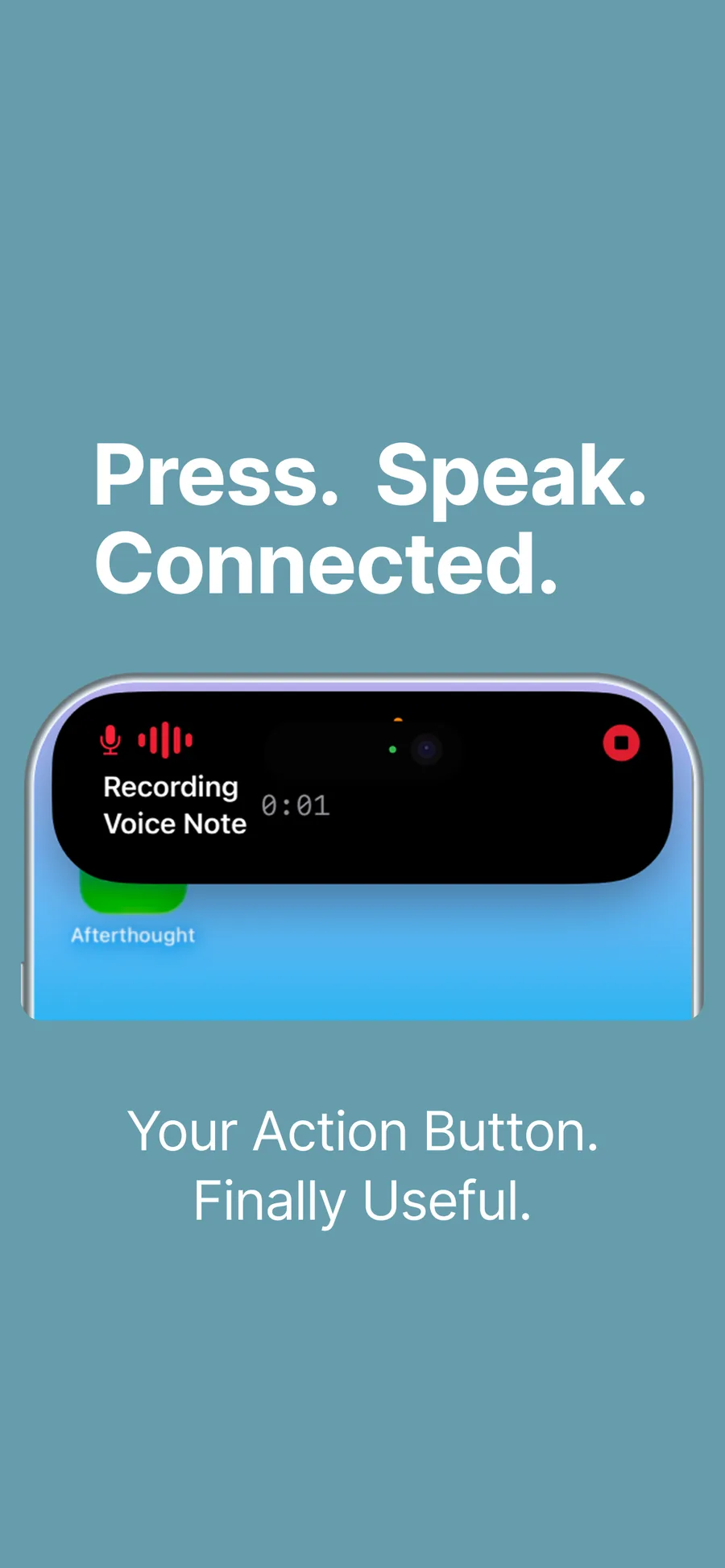
Press the configured Action Button workflow, speak naturally, and return to what you were doing. Afterthought prepares the result for review, keeping it or sending it where it belongs.
Free to download · No account required · Uses the current Afterthought capture shortcut workflow
Remove the app-opening step
Even a simple voice note often starts with finding an app, opening it, and deciding where the thought belongs. The Action Button gives you one physical starting point before the thought gets diluted.
Start the configured Afterthought capture shortcut from the Action Button.
Say what is on your mind naturally, without first choosing an app.
Afterthought processes the capture according to your selected mode.
How Action Button capture works
The destination app does not need to be open before capture begins.
Use your configured Action Button workflow to begin Afterthought capture.
Capture an idea, task, reminder, message, event, or anything you want to keep.
Your selected mode determines whether it transcribes, prepares for review, or follows the eligible send flow.
Open Afterthought to check the result, keep it there, or send it to a supported destination.
Set it up once
Afterthought's Action Button capture uses the iPhone Shortcut assignment. The exact wording in iOS can vary by version, but the path is intentionally straightforward.
Open Afterthought and complete the current capture shortcut setup.
Go to Settings > Action Button on a compatible iPhone.
Select the configured Afterthought capture shortcut as the Action Button action.
Use the button when an idea appears, then review the prepared result in Afterthought.
A real Action Button example
“Remind me tomorrow at ten to review the launch copy with Sam.”
Use the same capture layer for a note, a task, a reminder, an event, a message, an email draft, or a supported app handoff.
action-button-setup.pngaction-button-result.pngSpeed without giving up control
The Action Button starts capture quickly. You still choose the standard Afterthought mode and retain review controls for supported prepared output.
Choose Transcribe Only, Classify & Review, or Classify & Send as the standard behaviour.
Edit or correct supported prepared output by typing or speaking after capture.
When one recording requests several actions, they remain together for review and do not auto-send.
Capture first, decide afterwards
Afterthought can keep the capture inside the app or prepare it for the places you already use.
Prepare a title and body, review them, then send to a configured Notion workflow.
Explore Notion capturePrepare supported task, date, priority, and description details.
Explore Todoist captureUse your wrist when the phone is not in your hand.
Explore Apple Watch captureLocal-first privacy
Capture and transcription are local-first. Apple Intelligence, Classic, and downloaded Local AI Models can process on device. Text leaves the device when you choose configured Cloud AI or use a destination that requires an external service.
Action Button voice capture FAQ
Set up the current Afterthought capture shortcut, then choose that shortcut in Settings > Action Button on a compatible iPhone. Press the Action Button to start the configured capture workflow.
Yes. The configured Afterthought shortcut starts the current voice-to-action capture flow, so you can speak without opening the destination app first.
Yes. Pro can prepare several grounded actions from one recording. Multiple-action bundles remain together for review and never auto-send.
Yes. Use Classify & Review to check and edit supported output. Uncertain or incomplete results remain available for review.
Yes, when those Pro integrations are configured. Afterthought prepares supported information for the selected destination; you can review it before committing it.
Yes. The Action Button starts Afterthought capture. The destination app does not need to be open during the initial capture.
One button. Say what is on your mind.