
On this page
Start hereQuick startsCaptureCapture optionsSettingsReview and sendApple WatchApps and destinationsPrivacy and backupTroubleshootingBefore you start
- Open Afterthought and complete the short welcome flow.
- Allow Microphone access. Allow Speech Recognition too if prompted; it is required for transcription.
- Open Settings and choose your capture mode and the apps you want to use.
- Grant access to Apple services such as Reminders or Calendar only when you want Afterthought to create items there.
You can return to Settings at any time to change permissions, destinations, privacy choices, and capture behaviour.
Quick starts
Start with Classify & Review so you can see and approve each result before it goes anywhere.
1. Save an idea as a note
Say: “Save this in Apple Notes: try a simpler headline that explains the benefit in five words.”
- Tap the Home microphone and speak.
- Stop recording and open the ready capture.
- Check the title and note, then select Send or Keep in Afterthought.
2. Create a reminder
Say: “Remind me to book the dentist tomorrow at 9 AM.”
- Tap the microphone and speak.
- Open the prepared capture.
- Confirm its text, date, and time, then send it to Reminders.
3. Schedule an event
Say: “Schedule coffee with Sam next Wednesday at 2 PM for an hour.”
- Record the request.
- Review title, time, duration, and Calendar destination.
- Correct any detail, then send.
4. Send a message or draft an email
Say: “Send Morgan a message saying I’ll be ten minutes late.”
- Record the request.
- Review recipient and message.
- Send through the system message flow. For email, state the subject and body clearly.
5. Capture from your Watch
Say: “Add renew insurance to my Personal list next Friday.”
- Open Afterthought on Apple Watch and tap the microphone.
- Speak, then tap again to finish.
- Open Afterthought on iPhone after transfer to process and review it.
Capture a quick thought
From Home, tap the outlined microphone, speak naturally, then tap it again to stop. The recording is saved locally first and moves through stages such as transcribing, preparing, and ready.
You do not need a rigid command format. Name a destination if you know it; otherwise Afterthought uses your enabled apps and routing defaults to prepare an appropriate result.
Choose a capture mode
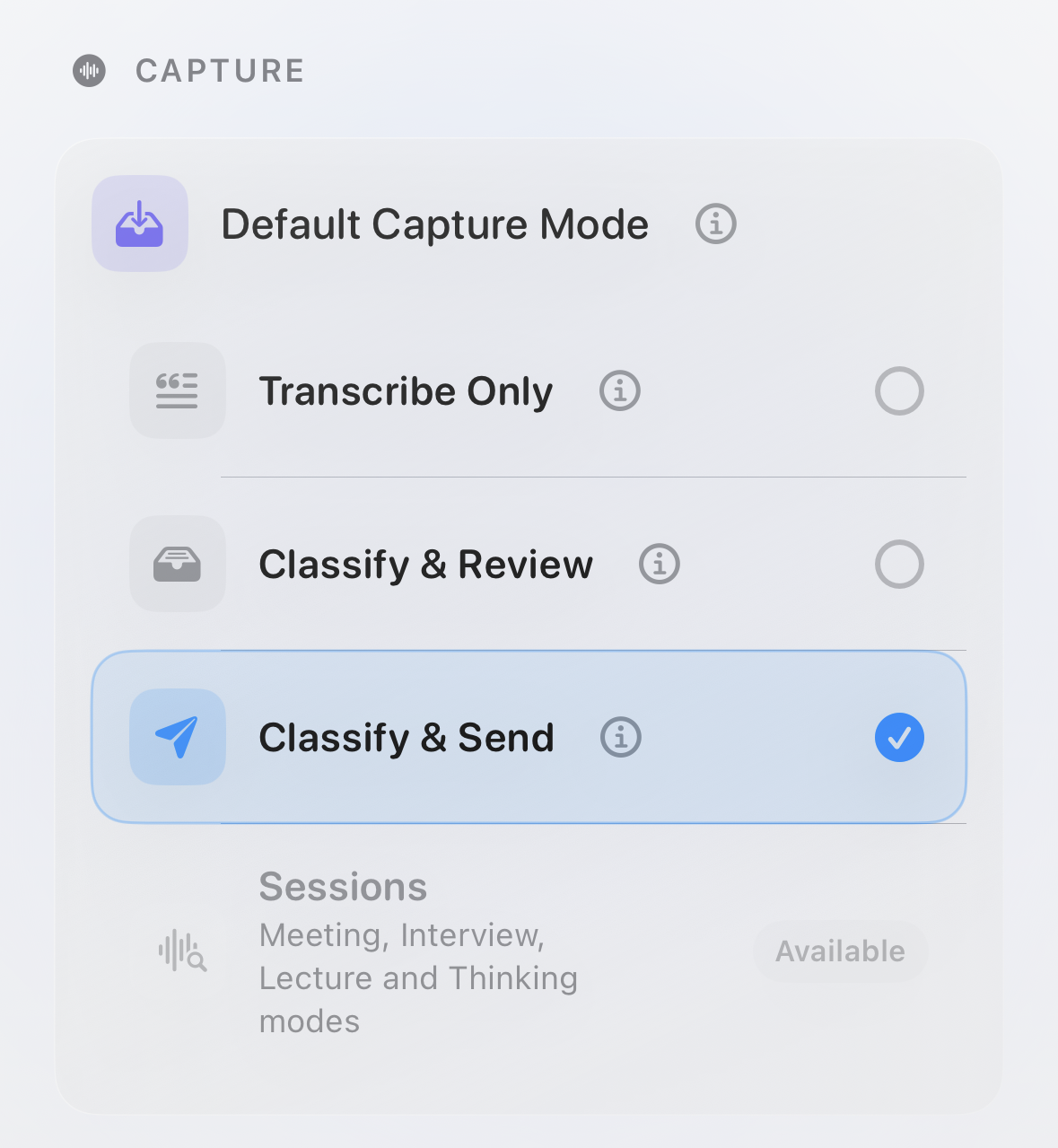
Set the default in Settings → General → Capture, or choose a mode from the record control when starting an in-app recording.
| Mode | What happens |
|---|---|
| Transcribe Only | Saves a local transcript. It does not classify, generate, or send anything. |
| Classify & Review | Prepares an action and keeps it in Afterthought for your approval. This is the best default if you want control. |
| Classify & Send | May send a confident, complete, supported single action automatically. Uncertain, incomplete, unavailable, or multiple actions remain for review. |
Ways to capture
Afterthought gives you several ways to start recording. The Home toolbar also lets you toggle Nature Mode and open Settings.

Nature Mode
Tap the Afterthought app icon at the left of the Home toolbar to turn Nature Mode on or off. Captures made while it is active wait safely and process after you leave Nature Mode.
Sessions
Tap the people icon on Home, choose Meeting, Interview, Lecture, or Thinking, then record. Use Stop & Save when finished.
Quick Capture
Tap the microphone to start the default Quick Capture. Press and hold it to choose another Quick Capture mode for one recording without changing the default.
Settings
Use the gear to choose capture defaults, destinations, privacy, intelligence, Watch, and Shortcut options.
iPhone Action Button
On a compatible iPhone, set the Afterthought capture shortcut in Settings → Action Button → Shortcut. Press it to begin the configured capture without opening a destination app.
Apple Watch
Tap the Watch microphone, speak, then tap again to finish. The capture transfers to iPhone when the devices reconnect.
Siri and Shortcuts
Open Settings → Shortcuts to configure an available Afterthought shortcut or App Intent. Then ask Siri to run the Siri phrase shown for that shortcut. The exact phrase can vary by shortcut and iOS version.
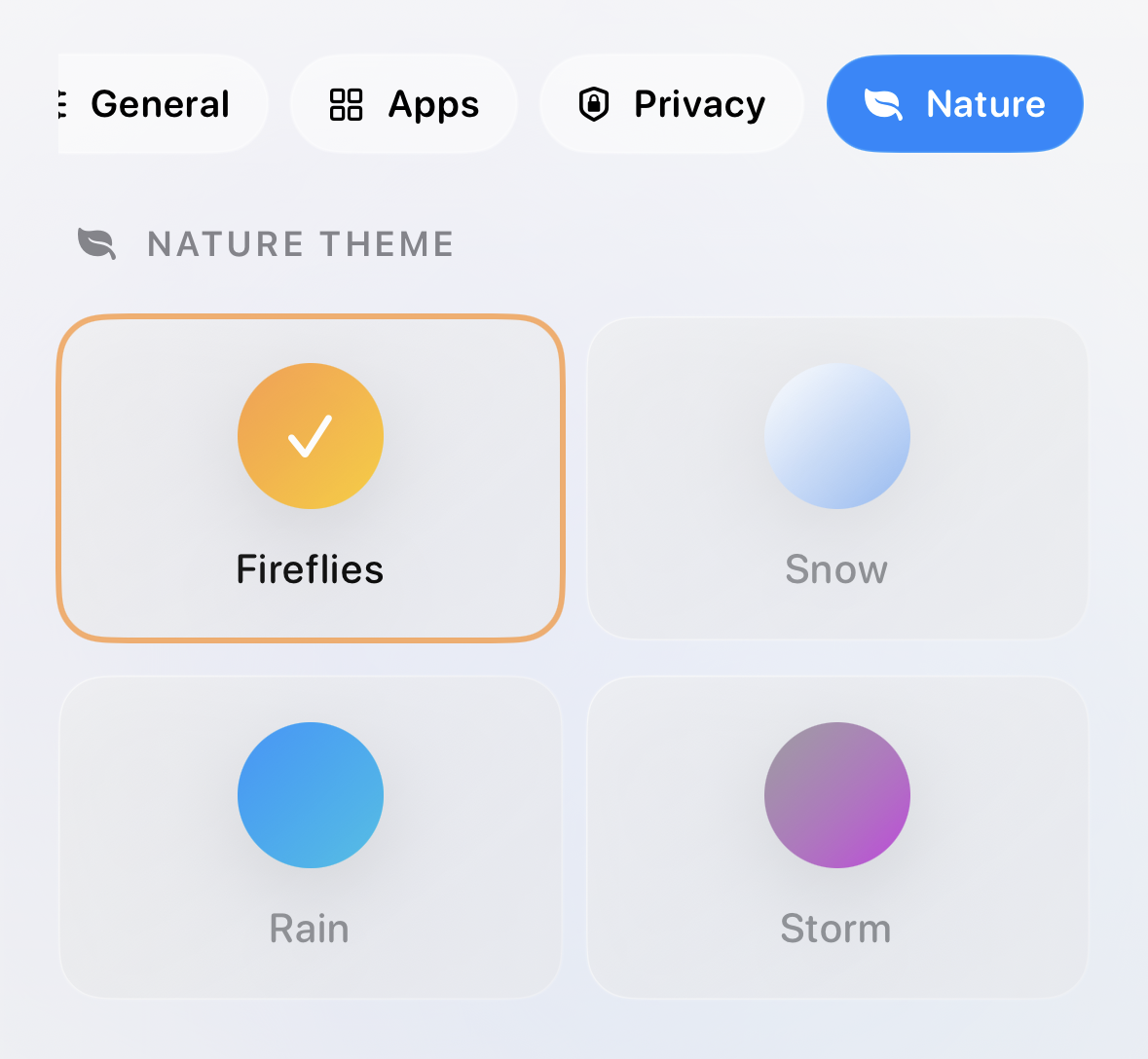
Choose a Nature theme
Tap the app icon on Home to enter Nature Mode. To choose an available theme, open Settings and select the Nature tab.
Settings and setup
Open Settings with the gear button. The exact rows can vary with your device, iOS version, installed apps, and plan.
| Settings area | What you can set up |
|---|---|
| General | Default capture mode, App Lock, optional location and now-playing context, audio retention, daily review reminders, and data backup. |
| Intelligence | Apple Intelligence, Classic compatibility processing, downloaded local models, or an optional Cloud AI provider. |
| Apps and destinations | Turn supported Apple and third-party destinations on or off, then complete each app’s setup. |
| Shortcuts | Available Shortcuts/App Intents for Siri, the Action Button, Control Centre, Lock Screen, widgets, and other iOS entry points. |
| Watch | Watch capture preferences, including Watch Auto Record where available. |
Choose an intelligence engine
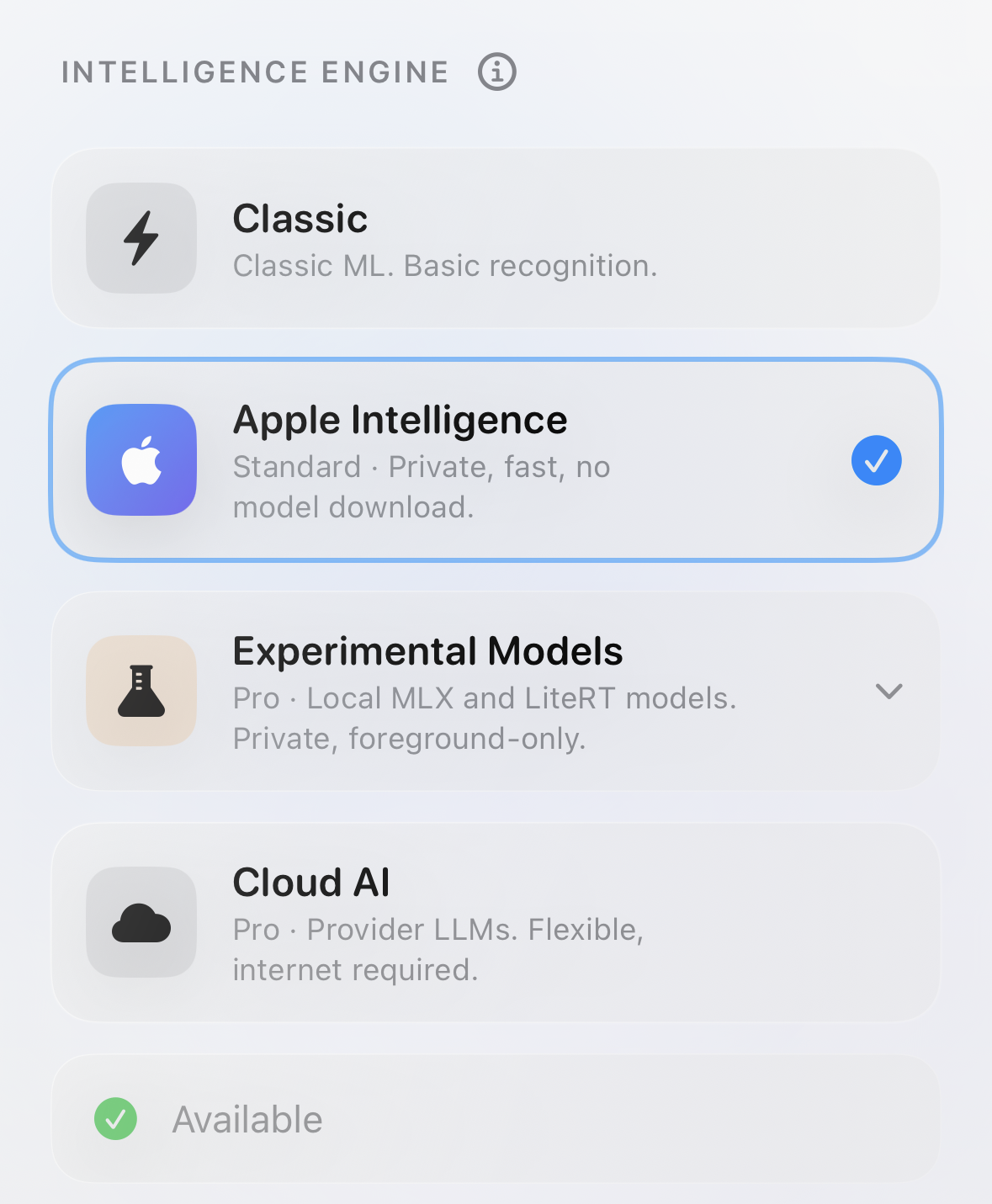
Open Settings → Intelligence to choose an available engine.
| Engine | When to use it |
|---|---|
| Classic | A fast, conservative compatibility option for straightforward capture. |
| Apple Intelligence | The standard private option on supported devices. It runs on device and does not need a separate model download. |
| Experimental Models | Optional Pro downloaded local models. They stay on device, but use device storage and run in the foreground. |
| Cloud AI | Optional Pro provider models. They require an internet connection and send relevant capture text to the provider you select. |
Set up an app destination
- In Settings, open the app or destination category.
- Turn on the destination you want to use.
- Complete its setup sheet. Apple services may request permission; third-party services can use an account connection, API token, app handoff, URL scheme, or the system share sheet.
- Make a short test capture and confirm the prepared fields before depending on that route.
The Apps tab groups destinations into Apple Apps, Tasks & Planning, Notes & Knowledge, and Communication. Connect an app first, use Setup where shown, then turn it on only when you want Afterthought to use it.
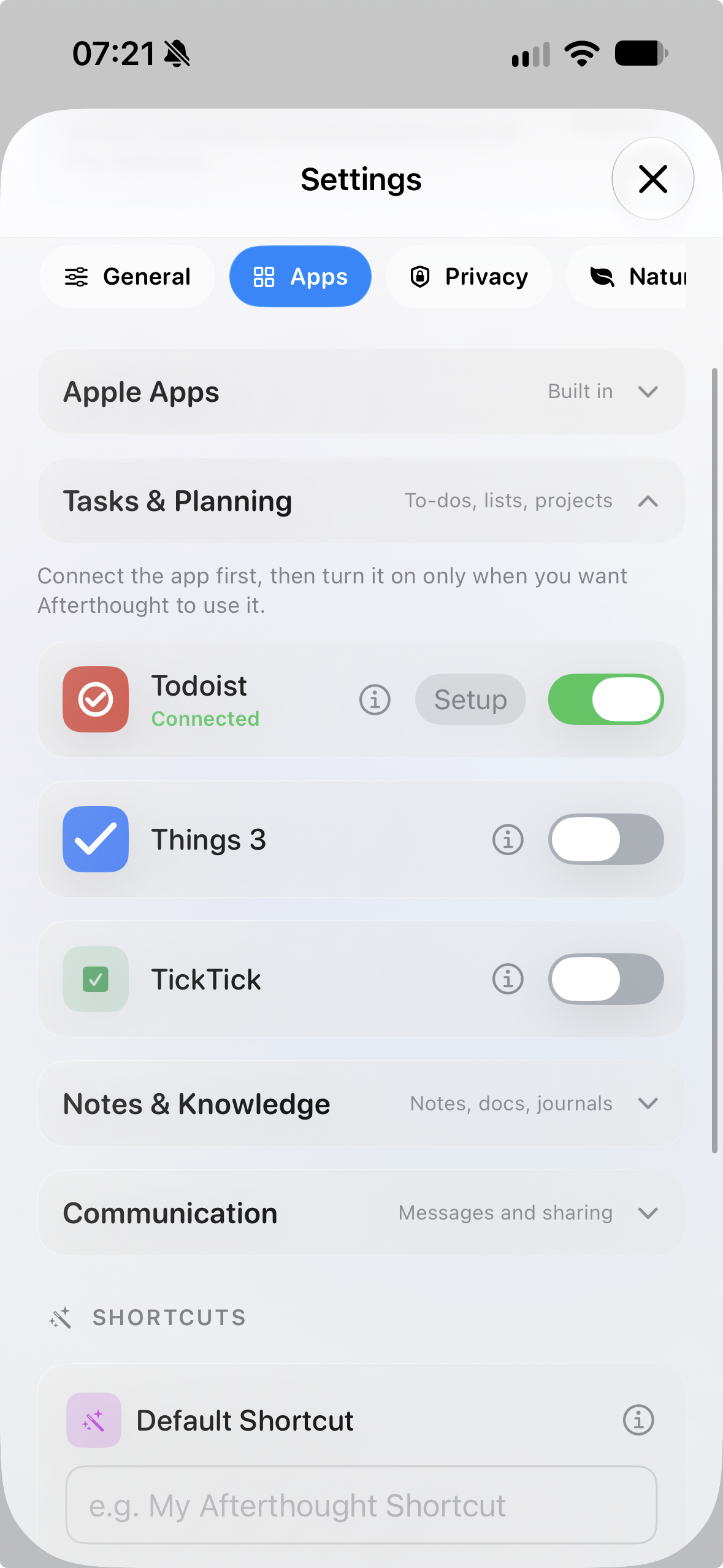
For app-specific requirements, supported fields, and delivery behaviour, open that app’s Settings page and use its Info button. The Shortcuts area lets you name a default Shortcut for prepared Shortcut actions and configure available Shortcuts/App Intents for Siri, the Action Button, Control Centre, Lock Screen, widgets, and other iOS entry points. Apple Notes, Reminders, Calendar, Music, Apple Journal, Messages, and Shortcuts use the relevant Apple or system flow. Notion, Todoist, TickTick, Things 3, Bear, Obsidian, Day One, Slack, Email, and Evernote each have their own supported delivery method and fields. For the online equivalent, see the integration docs.
Intelligence and privacy choices
Local models must be downloaded before use. Cloud processing is used only when you deliberately select and configure a provider; Afterthought does not silently switch an unavailable local choice to Cloud AI. Use Settings → General for App Lock, context choices, audio retention, reminders, and backups.
Review, correct, and send
Tap a capture card to check its prepared text, destination, and fields such as a due date, event time, recipient, subject, project, label, or section. You can edit, change destination, keep the item in Afterthought, send it, copy or share available source material, restore the original transcript, or delete it.
A prepared result is not a substitute for checking important dates, recipients, and content before delivery.
Multiple actions in one capture
Afterthought can show separate prepared actions when you say more than one thing. Review each independently. Multiple actions never auto-send; edit, keep, delete, or send them one at a time. Eligible intelligence modes can apply one typed or spoken correction across the set. Review the updated result before sending.
Capture from Apple Watch
Open Afterthought on Apple Watch and tap the microphone to start recording; tap again to finish. The Watch saves audio locally and transfers it to the iPhone for processing.
The iPhone does not need to be nearby. If it is unavailable, the Watch keeps the capture and transfers it after the devices reconnect. A pending indicator shows captures waiting to transfer. In Settings, you can enable Watch Auto Record to start recording when the Watch app opens.
Send to your apps
Afterthought can prepare and route items to Apple Notes, Reminders, Calendar, Music, Apple Journal, Messages, and Shortcuts, plus supported third-party apps including Notion, Todoist, TickTick, Things 3, Bear, Obsidian, Day One, Slack, Email, and Evernote.
- Open Settings and select the relevant app category.
- Turn on the destination.
- Follow its setup sheet. Some services use an account connection or API token; others open their app or the system share sheet.
- Make a short test capture and review the fields before relying on it.
Availability varies by destination, installed apps, account configuration, and plan. Unsupported or incomplete work stays in review rather than being presented as delivered.
Writing actions
Optional Pro writing actions can turn a capture into a draft, polish text, propose a reply, generate ideas, make a plan, or create a journal-style version. Output is editable and review-first; it never sends on its own.
Privacy, storage, and backup
Afterthought stores audio locally first and uses on-device transcription. In Settings → General, you can turn on App Lock, choose whether location and now-playing music context may help a capture, set an audio-retention policy, enable a daily review reminder, and export or import a data backup.
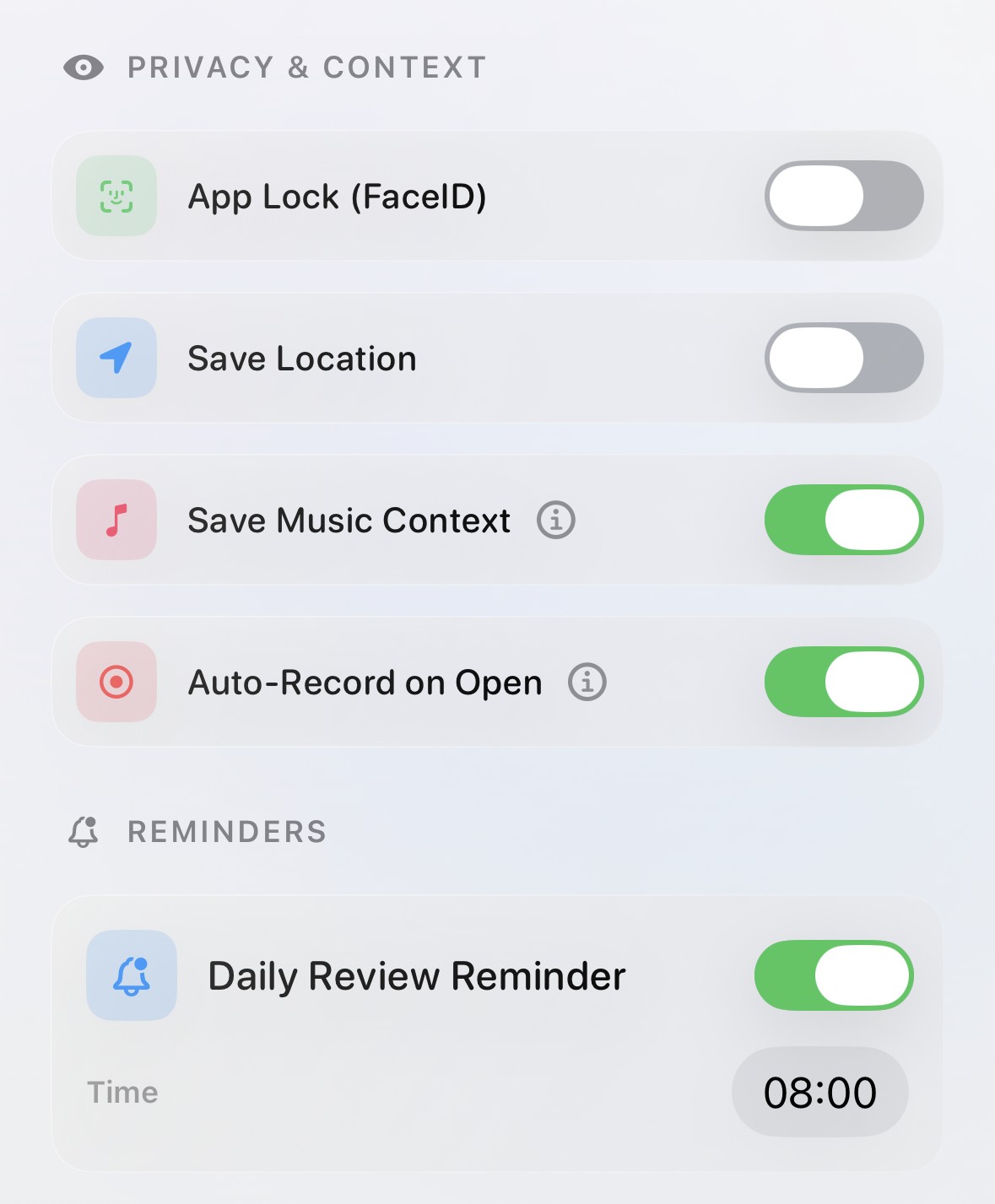
Privacy, context, and reminders
| Setting | What it does |
|---|---|
| App Lock (Face ID) | Requires Face ID before opening Afterthought. |
| Save Location | Includes location context only when you choose to allow it. |
| Save Music Context | Includes current music context when it can help a capture. |
| Auto-Record on Open | Begins recording when the app opens, if that suits your routine. |
| Daily Review Reminder | Shows an optional inbox-review reminder at the time you choose. |
Data backup and intelligence choices
Use Settings → General → Data Backup to export a JSON backup and choose whether it includes original audio. Backups include captures, transcripts, summaries, and optionally audio; they do not include API keys, service tokens, or subscriptions.
Apple Intelligence and Local AI Models process eligible work on device. If you deliberately choose a Cloud AI provider, relevant capture text is sent to that provider. Afterthought does not silently switch an unavailable local choice to a cloud service.
Troubleshooting
The app does not hear me
Check Microphone permission in iOS Settings, then make sure no other app is using the microphone.
There is no transcript
Check Speech Recognition permission, your selected transcription language, and that the capture was allowed to finish processing.
A Watch capture has not appeared on iPhone
Keep the Watch and iPhone paired, connected, and powered. The Watch holds recordings locally and retries transfer when a connection is available.
A destination is unavailable
Install and configure the destination app, enable it in Afterthought Settings, and complete any required account or token setup.
A result is wrong or incomplete
Edit it in review, restore the original transcript if needed, then send only after it is correct. For dates and time-sensitive items, always verify final details.
Still need help?
Check that you are using the latest version of Afterthought before contacting support. Then contact Afterthought support.